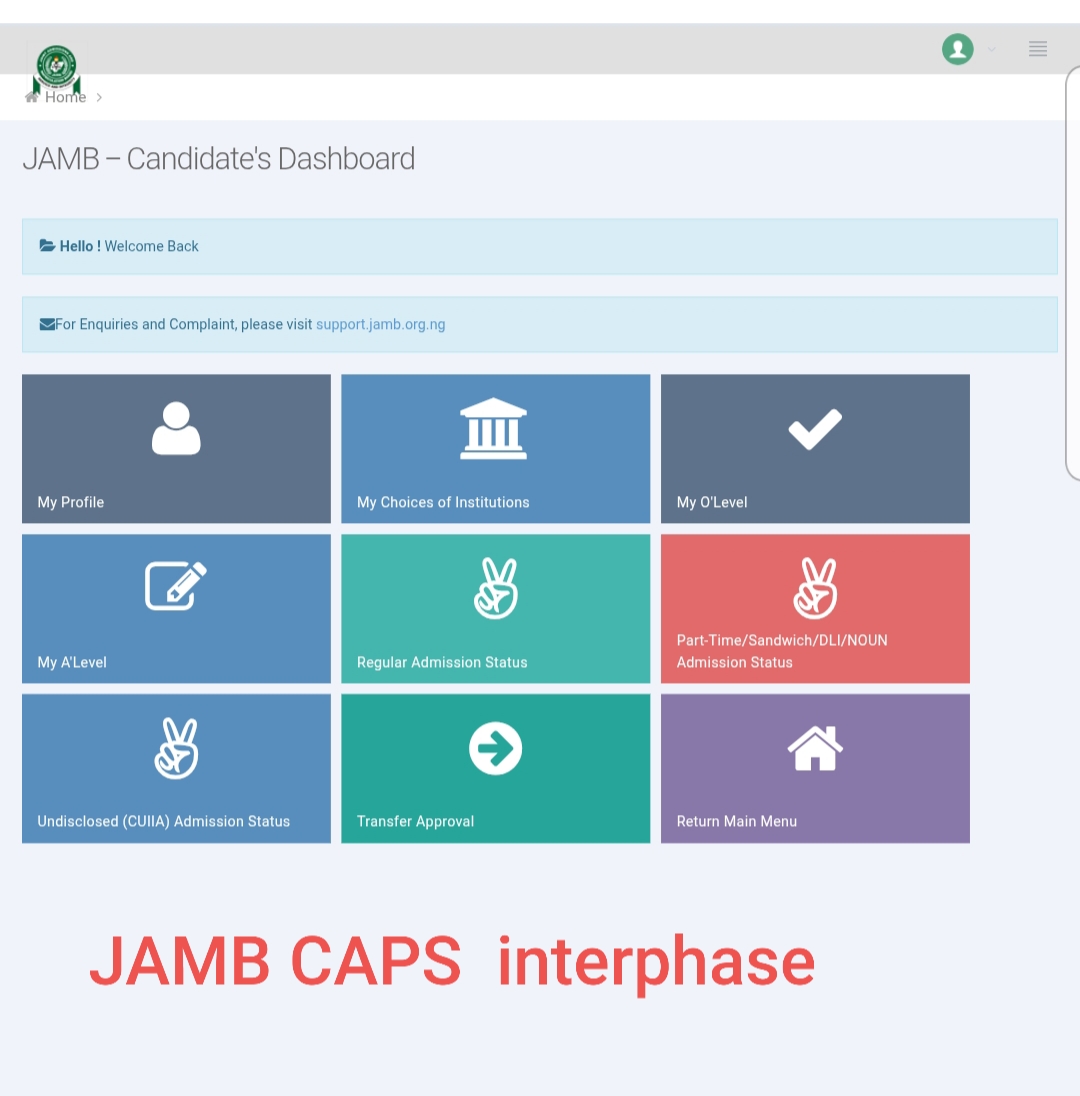
How to Login to JAMB CAPS
I remember how I checked my JAMB CAPS almost on a daily basis to see if I have been offered admission and it wasn’t long before I saw the “congratulations” message.
This stretches the importance of JAMB CAPS because you can:
- Check your admission status
- Accept or reject admission
- Monitor admission progress
- Confirm transfer approval
- Check O’level upload status and
- Verify institution admission updates.
How to login to your jamb CAPS (Step by step guide)
Step 1: Visit the JAMB CAPS Portal
Open your browser and go to jamb.gov.ng
Step 2: Click on the efacility link
A portal opens up requesting your email address and password. (password starts with cand e.g cand52f132).
Enter the email you registered with jamb and your password then click the “Login” button.
Step 3: Access CAPS
After logging in successfully you will see an Interphase like this
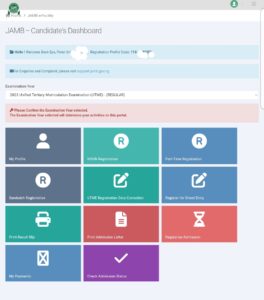
– Scroll down on your dashboard
– click “Check Admission Status” then you will see another Interphase like this
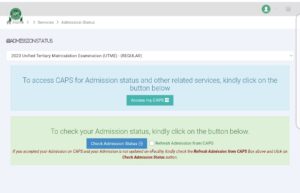
– click “Access my CAPS”
This will take you to the JAMB CAPS dashboard. It looks like this
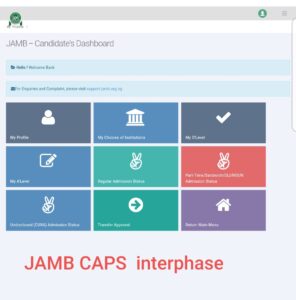
Step 4: Switch to Desktop Mode
Switch to desktop mode to display page properly (For Phone Users)
Why You May Not Be Able to Log In to JAMB CAPS
Many candidates face login issues trying to access CAPS. Common reasons and solutions are;
Wrong Email or Password
You must use the exact email and password used during JAMB registration.
Poor Internet Connection
If you stay in an area with unstable network connection you might encounter difficulty logging in.
Browser Issues
Use supported browsers like Google Chrome or Firefox and enable desktop mode.
CAPS Not Yet Activated
Sometimes institutions have not uploaded admission lists yet. Wait for a few days and try again.
How to Retrieve Forgotten JAMB Password
If you don’t know your password or you forgot it;
Visit the JAMB login portal efacility.jamb.gov.ng
Click “Forgot Password”
Enter your registered email
A password reset link will be sent to your email, follow the instructions carefully to reset password.
Another way is to text “password ” and your registered email address to 55019
E.g.
PASSWORD
emailaddress@gmail.com
Send the message in that order and you will be sent your password. Response might be delayed usually due to Network congestion but if you try it in the midnight you will get a faster response
Conclusion
The Joint Admissions and Matriculation Board (JAMB) introduced the Central Admission Processing System (CAPS) to make the admission process easier, faster, and more transparent for candidates
Through the platform, you can monitor your admission progress, accept admission offers, and stay updated throughout the admission process.
Always check CAPS regularly to avoid missing important admission updates.
Frequently Asked Questions (FAQs)
Can I log in to JAMB CAPS with my registration number?
No. You need your registered email address and password.
Is JAMB CAPS free to use?
Yes, accessing JAMB CAPS is completely free.
Why is my CAPS showing “Not Admitted”?
It may mean your institution has not released admission yet or your admission is still under review.
Can I access JAMB CAPS on my phone?
Yes. Enable desktop mode on your browser.
What happens if I do not accept admission on CAPS?
Your admission can not be fully processed until you accept it.






Check out my animation
Check if have admitted
Thank you very much!!!
Help